![full-logo-black (3)-1.png]](https://support.bizzycar.com/hs-fs/hubfs/full-logo-black%20(3)-1.png?height=40&name=full-logo-black%20(3)-1.png)
Service technicians or drivers now have the option to save media captured during an appointment directly to their device.
Save a Photo or Video
- Login to your BizzyCar mobile app
- Under Appointments, scroll down to the Completed section and click View.
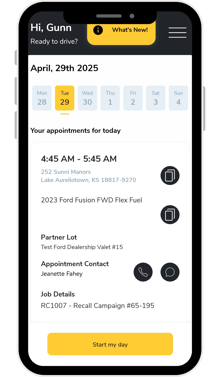
.png?width=220&height=377&name=HB%20Assets%20for%20Text%20Version%20(49).png)
- Long-press any photo or video displayed under vehicle media (before beginning work or after work completed).
.png?width=220&height=377&name=HB%20Assets%20for%20Text%20Version%20(51).png)
- Click Save on Save to Camera Roll prompt.
.png?width=220&height=377&name=HB%20Assets%20for%20Text%20Version%20(52).png)
NOTE: Useful for sharing images outside the app or keeping a personal copy.