![full-logo-black (3)-1.png]](https://support.bizzycar.com/hs-fs/hubfs/full-logo-black%20(3)-1.png?height=40&name=full-logo-black%20(3)-1.png)
Creating a New Appointment
-
Go to https://www.bizzycar.com/sign-in and log in to your account.
-
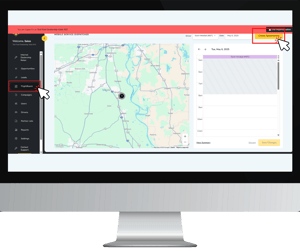
Once logged in, click FlightBoard from the left panel, then click Create Appointment.
-
Do a customer lookup, enter any of the following information:
Name, VIN, or Phone Number, then click Search.
.png?width=300&height=252&name=Image%20Assets%20for%20BizzyCar%20HubSpot%20(1).png)
-
Note: Only customers with identified recalls from your BizzyCar leads will appear.
-
-
Select the correct customer from the results, then click Select Customer.
.png?width=300&height=252&name=Image%20Assets%20for%20BizzyCar%20HubSpot%20(3).png)
Set Appointment Details
-
Review the Consumer and Appointment Info.
.png?width=300&height=252&name=Image%20Assets%20for%20BizzyCar%20HubSpot%20(4).png)
-
Under Services, add any required services.
.png?width=300&height=252&name=Image%20Assets%20for%20BizzyCar%20HubSpot%20(6).png)
.png?width=300&height=252&name=Image%20Assets%20for%20BizzyCar%20HubSpot%20(5).png)
-
Note: Service options are integrated with your scheduling system. Contact your BizzyCar Success Team to update these.
-
-
All mobile-eligible recalls are automatically selected.
-
Deselect the service that you are unable to perform.
-
Click Campaign Details for recall info.
-
.png?width=300&height=252&name=Image%20Assets%20for%20BizzyCar%20HubSpot%20(7).png)
Finalize the Appointment
-
Enter an Appointment Reference Number.
.png?width=300&height=252&name=Image%20Assets%20for%20BizzyCar%20HubSpot%20(8).png)
-
Select a Driver.
.png?width=300&height=252&name=Image%20Assets%20for%20BizzyCar%20HubSpot%20(9).png)
-
The Max. Scheduled number shows how many appointments the driver already has.
-
-
Choose the Date and Repair Time.
.png?width=300&height=252&name=Image%20Assets%20for%20BizzyCar%20HubSpot%20(10).png)
-
Adjust the Job Length using the +/- buttons.
.png?width=300&height=252&name=Image%20Assets%20for%20BizzyCar%20HubSpot%20(11).png)
-
Review or edit the Repair Address.
.png?width=300&height=252&name=Image%20Assets%20for%20BizzyCar%20HubSpot%20(12).png)
-
A “within range” message confirms it’s inside the driver's service area.
-
6. Add any Comments for the driver. Then click Create Appointment to save and apply settings.
.png?width=300&height=252&name=Image%20Assets%20for%20BizzyCar%20HubSpot%20(14).png)
View Appointment
The new appointment will appear on the Live Driver Map and Daily Calendar of the FlightBoard.
.png?width=300&height=252&name=Image%20Assets%20for%20BizzyCar%20HubSpot%20(15).png)