![full-logo-black (3)-1.png]](https://support.bizzycar.com/hs-fs/hubfs/full-logo-black%20(3)-1.png?height=40&name=full-logo-black%20(3)-1.png)
In this user guide, you'll learn how to request, send, and track payments using BizzyCar Pay. It's a new payment integration which allows you to manage payments at any stage of the appointment.
3. Fill Out the Payment Information
-
Select an Appointment
- Login to the BizzyCar web portal https://www.bizzycar.com/sign-in
- Click the FlightBoard on the left panel.
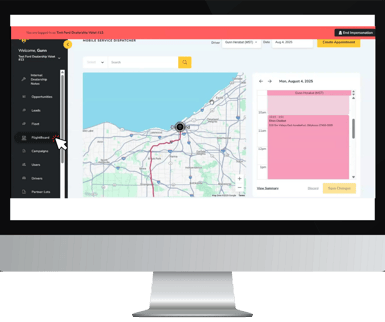
-
- Choose a driver from the dropdown.
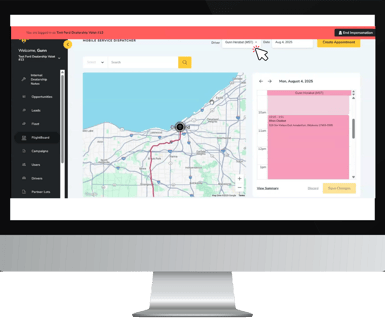
- Select an appointment from the driver's Daily Calendar.
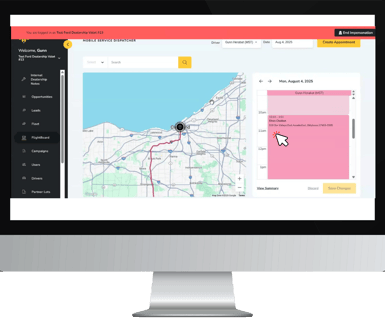
- Choose a driver from the dropdown.
-
- Click the car icon to view the Appointment Details.
.png?width=300&height=252&name=Image%20Assets%20for%20BizzyCar%20HubSpot%20(64).png)
.png?width=300&height=252&name=Image%20Assets%20for%20BizzyCar%20HubSpot%20(61).png)
2. Initiate a Payment Request
-
- From the dropdown, select Payment Request.
Then, click the Create Payment Request button.
.png?width=300&height=252&name=Image%20Assets%20for%20BizzyCar%20HubSpot%20(62).png)
.png?width=300&height=252&name=Image%20Assets%20for%20BizzyCar%20HubSpot%20(63).png)
- From the dropdown, select Payment Request.
3. Fill Out the Payment Information
-
- RO Number – Add a Repair Order number
.png?width=385&height=323&name=Image%20Assets%20for%20BizzyCar%20HubSpot%20(65).png)
- Total Amount Due and Additional Comments – Enter the amount to be charged and add any notes for context.
.png?width=385&height=323&name=Image%20Assets%20for%20BizzyCar%20HubSpot%20(66).png)
- Send to the Driver, Customer, or Both – Choose who receives the payment link by clicking the box.
- Click Save to complete the request.
- The selected recipient(s) will then receive an SMS with the Stripe checkout link.
- RO Number – Add a Repair Order number
4. Payment Requests and Status
-
- After clicking Save, the Payment Requests screen displays the Payment Status, Total Due, Repair order, and other related payment information.
.png?width=385&height=323&name=Image%20Assets%20for%20BizzyCar%20HubSpot%20(67).png)
- On the same screen, you can Cancel Payment Request or resend the payment link by clicking Navigate to Payment Link.
.png?width=385&height=323&name=Image%20Assets%20for%20BizzyCar%20HubSpot%20(68).png)
- After clicking Save, the Payment Requests screen displays the Payment Status, Total Due, Repair order, and other related payment information.
-
- You can resend the payment link at any stage of the appointment.
-
- Payment status updates on the driver's Daily Calendar based on the following:
- Pending – Payment has been requested but not completed.
- Paid – Payment successfully processed.
- Action Required – Payment failed or needs review.
.png?width=385&height=323&name=Image%20Assets%20for%20BizzyCar%20HubSpot%20(69).png)
- Payment status updates on the driver's Daily Calendar based on the following:
Key Notes to Remember
- RO Number is for reference only and does not sync with DMS.
- Stripe handles all payment processing for BizzyCar app.
- Payment requests can be created at any point — even days after the appointment.
- Only coordinators can complete payment requests, not drivers or service technicians.
- To enable Payments, contact your BizzyCar Customer Success Representative.