![full-logo-black (3)-1.png]](https://support.bizzycar.com/hs-fs/hubfs/full-logo-black%20(3)-1.png?height=40&name=full-logo-black%20(3)-1.png)
1. Start Appointment
-
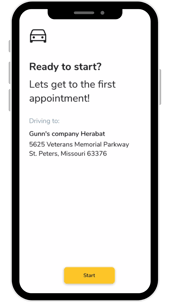
Log into the app. Then, tap
Start my day→Startto go to Service Appointment.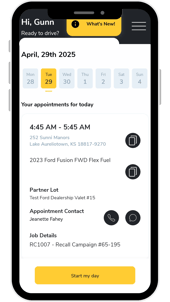
2. Verify the Vehicle (VIN)
- Option 1 (Scan): Tap
Scan Barcodeand scan the vehicle's VIN using your mobile phone. - Option 2 (Type): Tap
Manual Entryand manually type the VIN.
.png?width=235&height=314&name=Assets%20for%20Hubspot%20knowledge%20base%20(TikTok%20Photo%20Mode%2034).png)
3. Take Pre-Service Photos and Video
-
Take photos of all sides: Driver, Passenger, Front, Rear.
- Upload by tapping the Plus sign.
-
Tap
Add Extra Pictures→ snap odometer (recommended). -
Add extra pictures or comments as needed.
- Upload a walkaround video
- Note: videos can be up to 30 seconds long
%20(4).png?width=255&height=340&name=Assets%20for%20Hubspot%20knowledge%20base%20(TikTok%20Photo%20Mode%2034)%20(4).png)
4. Complete the MPI Tasks
- Scroll down and tap Multi-Point Inspection.
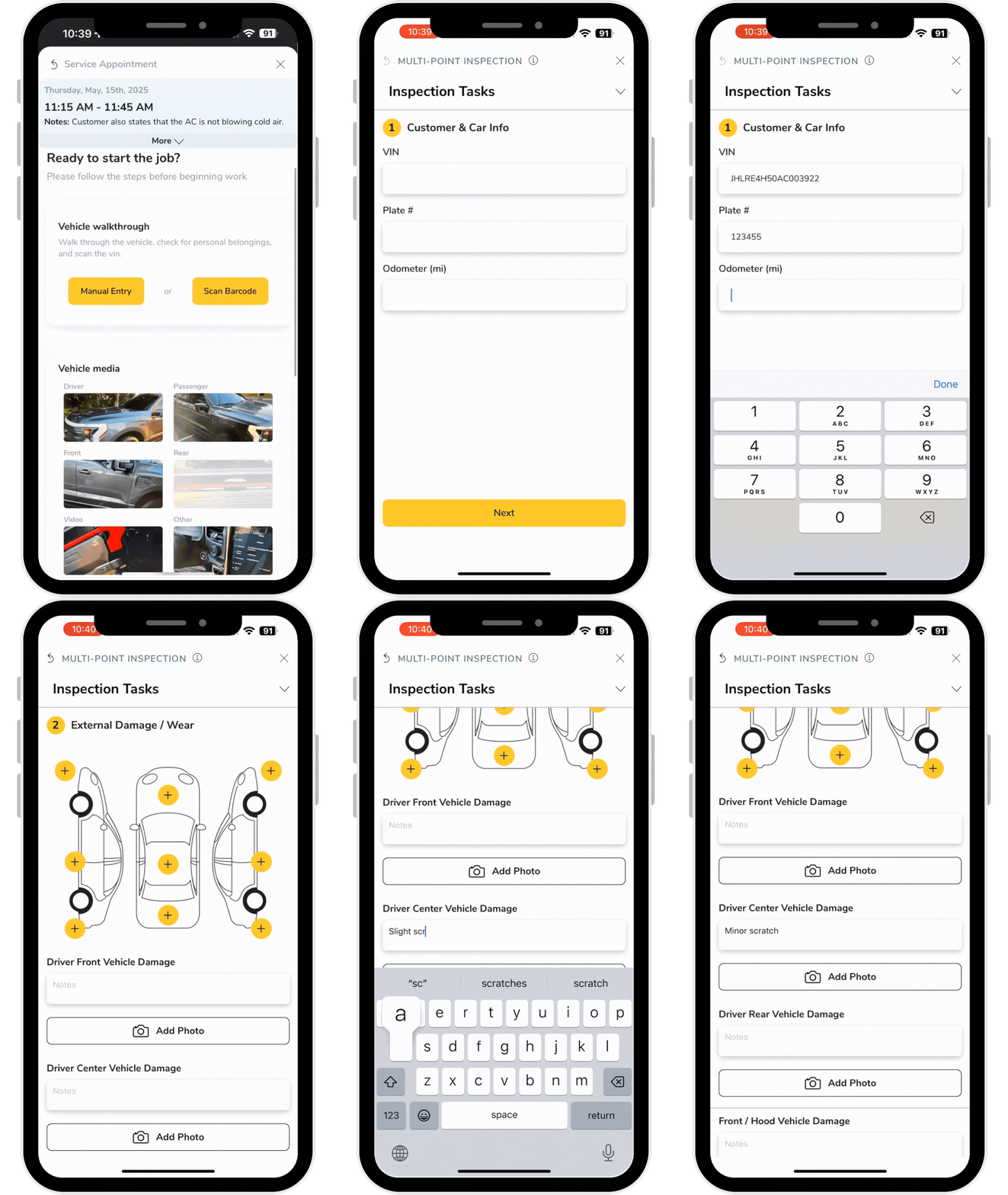
- Review and complete all MPI tasks.
%20(14).png?width=246&height=328&name=Assets%20for%20Hubspot%20knowledge%20base%20(TikTok%20Photo%20Mode%2034)%20(14).png)
- Finalize MPI Summary → Tap
Customer Reviewed%20(15).png?width=246&height=328&name=Assets%20for%20Hubspot%20knowledge%20base%20(TikTok%20Photo%20Mode%2034)%20(15).png)
Review the Work Order With the Customer
- Below Multi-Point Inspection, tap
Review Work Order - Tap
Customer Reviewed%20(17).png?width=254&height=339&name=Assets%20for%20Hubspot%20knowledge%20base%20(TikTok%20Photo%20Mode%2034)%20(17).png)
%20(18).png?width=253&height=338&name=Assets%20for%20Hubspot%20knowledge%20base%20(TikTok%20Photo%20Mode%2034)%20(18).png)