![full-logo-black (3)-1.png]](https://support.bizzycar.com/hs-fs/hubfs/full-logo-black%20(3)-1.png?height=40&name=full-logo-black%20(3)-1.png)
1. After-Service Tasks
Access Post-Service Section:
➔ After tapping Job Finished, you'll automatically go to the Post-Service screen.
.png?width=170&height=291&name=HB%20Assets%20for%20Text%20Version%20(4).png)
2. Document the Vehicle's Condition
➔ Take new photos and a video (30 seconds) showing the vehicle's condition after repairs.
➔ Cover all angles: Driver, Passenger, Front, and Rear sides.
Upload Media:
➔ Under Vehicle Media, tap the + (Plus) icon.
➔ Upload all post-service photos/videos required by your dealership.
-1.png?width=170&height=291&name=HB%20Assets%20for%20Text%20Version%20(5)-1.png)
Add Final Notes & Complete:
➔ Type any important observations in the notes field.
➔ Tap Complete Job to finalize documentation.
.png?width=170&height=291&name=HB%20Assets%20for%20Text%20Version%20(6).png)
3. Customer Survey (If Enabled)
Survey Automation
➔ If your dealership uses BizzyCar surveys, tapping Complete Job will automatically send an SMS survey link to the customer..png?width=170&height=291&name=HB%20Assets%20for%20Text%20Version%20(7).png)
4. Returning to the Dealership
➔ The app will prompt you to return to the dealership after your final appointment of the day.
➔ Tap Go when ready to drive back.
.png?width=170&height=291&name=HB%20Assets%20for%20Text%20Version%20(8).png)
Navigate Safely:
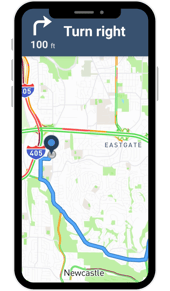
➔ On the Driving To screen, tap Start Navigation.
➔ Follow turn-by-turn directions to the dealership..png?width=170&height=291&name=HB%20Assets%20for%20Text%20Version%20(9).png)
Confirm Arrival:
➔ Upon parking at the dealership, close the navigation screen and tap Arrived.
➔ You'll receive confirmation that your day is complete!
.png?width=170&height=291&name=HB%20Assets%20for%20Text%20Version%20(10).png)