![full-logo-black (3)-1.png]](https://support.bizzycar.com/hs-fs/hubfs/full-logo-black%20(3)-1.png?height=40&name=full-logo-black%20(3)-1.png)
Navigating to an Appointment
1. Log in
➔ Log into the BizzyCar Driver mobile app.
.gif?width=170&height=291&name=HB%20Assets%20for%20Text%20Version%20(1).gif)
2. Start Your Day
- After logging in, you'll see the Service Appointment dashboard.
- Review the details and get ready for your first appointment of the day.
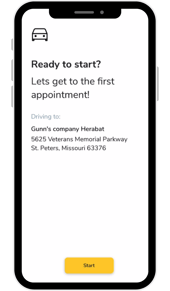
➔ To proceed, click the Start My Day button. Then, click the Start button to confirm.
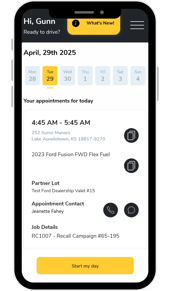 →
→ 
3. Start Navigation
➔ When you're ready to drive, click the Start Navigation icon.
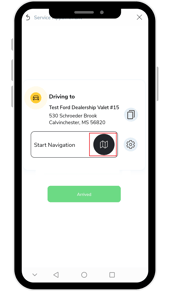
Pro Tip: 💡 Always use BizzyCar’s in-app navigation to drive to your customer's location. This will automatically send a link to your customer where they can track your ETA.
.png?width=177&height=303&name=HB%20Assets%20for%20Text%20Version%20(11).png)
.gif?width=170&height=302&name=Untitled%20design%20(6).gif)
4. Turn-by-turn directions
- Drive safely while following the app's turn-by-turn directions to your customer’s location.
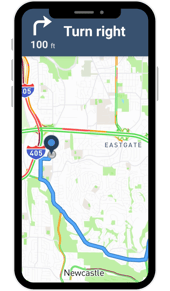
5. Arrival
➔ Close the navigation screen and click the Arrived button once you're at the customer's location.
Need help logging in? See → Mobile App Activation for Service Technicians